
Have you ever opened your own website and felt a wave of “cringe”? Maybe the colors feel uninspired, the layout is generic or half your pages still say “coming soon”. For a long time, my own site, gptguides.co, felt exactly like that… boring and uninspired. I wanted to be the ultimate destination for AI and productivity, but I didn’t know how to build the vision in my head. That changed when I stopped fighting with basic WordPress editors and started using DIY web design with AI to write custom code.
This approach isn’t going to save you time (you’re probably going to spend quite some time doing it yourself), but it’s going to save you hundreds, if not thousands, of dollars in developer fees. Whether you are a total beginner or someone who knows a little HTML, AI can now act as your personal UX expert and lead developer.

Why DIY Web Design with AI Beats Standard Templates?
Most people get stuck because they rely on the standard “drag-and-drop” blocks. While tools like WP Bakery or Elementor are great, they can often feel restrictive. By using the Raw HTML element in WordPress, you can paste custom code that looks exactly how you want it to.
To start your journey into DIY web design with AI, you don’t need expensive software. All you need is:
-
A domain and hosting.
-
Notepad++: A free, lightweight note-taking app that allows you to write and test code on your computer before going live.
-
Coolors.co: A free tool to find your brand’s specific “hex codes” (e.g., #FFFFFF for white).
Step 1: The Strategic Prompt for DIY Web Design with AI
Before you write a single line of code, you need a plan. Use your AI chatbot to determine the best practices for your specific page. Ask it what a high-converting homepage should contain, and then use this specialized prompt to generate your structure.
Prompt to Try
“Act as a web designer and UX expert. Based on my brand (colors: [insert hex codes], style: [describe your vibe]), create a [page, e.g. home/about/FAQ] structure with sections and copy suggestions, and then generate clean HTML and CSS code with comments explaining what I can easily edit.”
If you don’t know any HTML or CSS, a great resource is W3Schools.
Step 2: Testing Your DIY Web Design with AI Code
Once the AI generates your code, copy it and paste it into Notepad++. Save the file as a “.html” or Hyper Text Markup Language document.
Now, find that file on your computer, right-click and select “Open in Browser”. You will see a live preview of your website. This allows you to play with the style and layout without breaking your actual website. If you don’t like a section, simply tell the AI what to change (or change it yourself), while reminding it to keep the parts you do like.
Step 3: Mastering the Basics of Custom Code
You don’t need to be a programmer, but knowing where to look in the code makes the process much faster.
Quick Guide to Editing HTML
-
Text content → Look inside the
<body>section; this is the text that actually shows up on your page. The text that actually appears on the site is usually black (the rest of the code can be red, blue, purple or green). -
Links → Edit the URL found inside
<a href="your-link-here">. -
Images → Change the source URL inside
<img src="image-link-here">. Tip: Upload your image to your WordPress Media library first to get the URL. Once you upload it, click on it and find the URL on the right. -
Colors & design → Adjust values inside the
<style>section. Look for hex codes like #000000. -
Sections/layout → Look for structural tags like
<div>,<section>,<header>, or<footer>.
💡 Tip: If you’re unsure what something does, change it slightly in Notepad++, save and refresh your browser page to see the result.
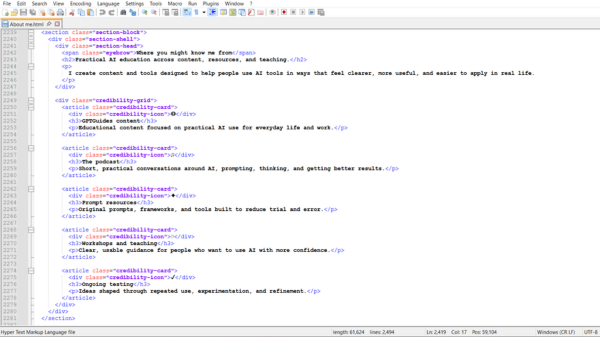
Step 4: Going Live with Your Custom AI Site
When your code is ready, go to your WordPress dashboard and add a new page. Add a “Raw HTML” element and paste your entire block of code.
I used this exact method to build my Tools Library. Because I used custom code, I was able to include advanced JavaScript features like search bars and collapsing dropdown menus that a standard template simply couldn’t handle. I basically built my entire website that way, but the Tools Library just has to be my favourite!
Conclusion: Launching Your DIY Web Design with AI
DIY web design with AI is about empowerment. It turns your website from a generic placeholder into a professional asset that truly represents your brand. Plus, you’ll learn a valuable new skill along the way.
Want to see the results? Visit my Tools Library to see how custom HTML and CSS transformed my site.
Are you ready to stop cringing at your homepage? Grab your hex codes and try the prompt above! If you get stuck or want to work on your website together, send me an email or DM me on Instagram @GPTGuides.
FAQ: Mastering DIY Web Design with AI
How does DIY web design with AI save money for small businesses?
DIY web design with AI eliminates the need for expensive professional developers by using LLMs like ChatGPT or Claude to write custom HTML and CSS. This allows non-technical users to build high-end features, such as custom search bars and interactive libraries, for the cost of an AI subscription rather than thousands in agency fees.
Can I use AI to write code for a WordPress site?
Yes, you can use AI to generate clean HTML and CSS code, which is then pasted into a “Raw HTML” or “Custom HTML” block within your WordPress editor. This bypasses the limitations of standard “drag-and-drop” templates, allowing you to create unique layouts while keeping your site lightweight and fast.
Do I need to know how to code to use AI for web design?
You do not need to be a programmer, but a basic understanding of HTML structure helps you guide the AI more effectively. By using tools like Notepad++ to test AI-generated snippets, you can learn to identify and edit text, links, and colors manually, turning the AI into a collaborative lead developer.