
ChatGPT is an incredibly helpful AI assistant, but are your ChatGPT conversations private? If you use ChatGPT to ask sensitive questions or discuss personal topics, you’ll want to ensure those chats stay confidential. By default, ChatGPT may save and use your conversations to train its AI models and improve the service. In some cases, AI trainers can review chat transcripts to monitor for policy violations or help refine the AI (source: scribbr.com). Don’t worry, though! You can take a few key steps to keep your ChatGPT conversations private. This checklist will walk you through essential tips and settings to check so you can use ChatGPT securely and with peace of mind.
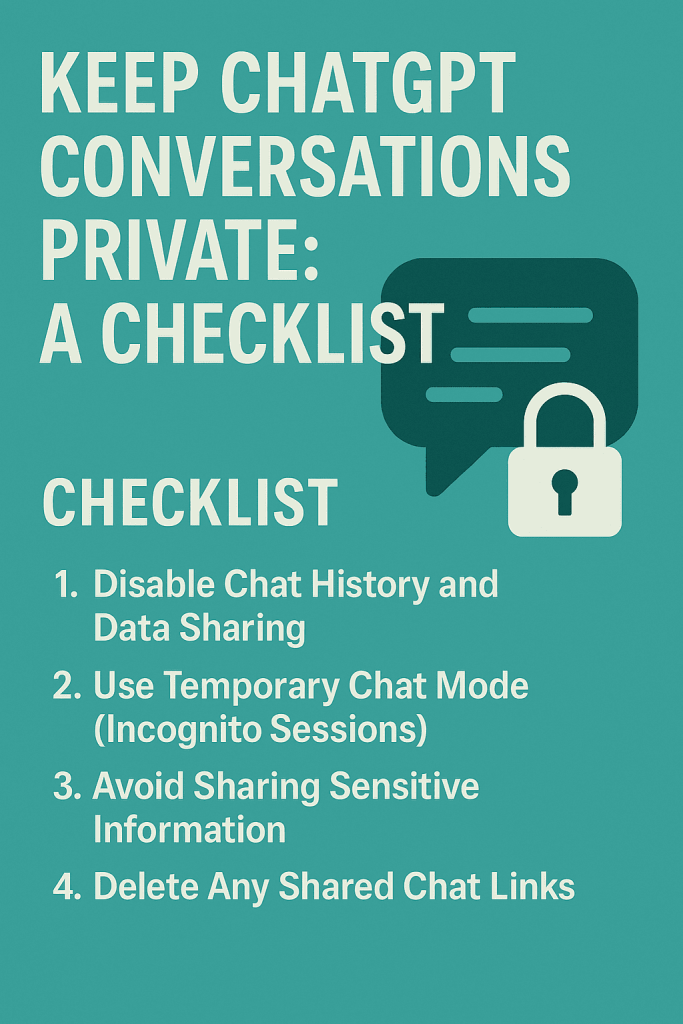
1. Disable Chat History and Data Sharing
One of the first things to do is turn off ChatGPT’s chat history and model training for your account. OpenAI allows users to opt out of having their conversations used to improve the AI. When you disable this setting, your conversations won’t be used to train ChatGPT (source: help.openai.com). (They will still be stored in your account history for a short time, but only you can see them.) Here’s how to disable data sharing in ChatGPT step by step:
-
Log in to ChatGPT on your browser and click your account profile icon (usually in the bottom-left corner).
-
Go to Settings and find the “Data Controls” section.
-
Toggle off the option labeled “Chat History & Training” (it may be called “Improve the model for everyone”). This ensures new chats are not saved to your history and not used for training.
-
Confirm any prompts to apply this change.
Once this is turned off, any new conversations you have will not be retained for model training purposes. You’ll notice that ChatGPT won’t list these chats in the sidebar history. According to OpenAI, unsaved chats are not used to train future models and are permanently deleted from ChatGPT’s systems after 30 days. This simple setting is crucial for privacy, so double-check that your chat history is disabled if you want maximum confidentiality.
2. Use Temporary Chat Mode (Incognito Sessions)
ChatGPT now offers a Temporary Chat mode, which is essentially an incognito mode for your AI conversations. When you start a temporary chat, ChatGPT treats it as a blank slate with no memory of past chats, and it won’t save the conversation to your account. Temporary chats are not used for training the model and are deleted from OpenAI’s systems after 30 days. They also won’t appear in your history or be accessible later, which is great for sensitive one-off queries.
To use this feature, open a new chat and click the “Temporary” button at the top-right of the chat window. The interface will indicate you’re in Temporary Chat mode. Now you can chat freely, knowing the conversation won’t create a lasting record. Keep in mind that OpenAI will still keep the chat data internally for up to 30 days (for safety monitoring), but after that it’s gone (source: help.openai.com). Temporary mode is perfect for when you need to ask ChatGPT about something private, like health, legal, or personal matters, and you prefer not to log it permanently. Make it a habit to switch on this incognito-chat feature whenever privacy is a concern.

3. Avoid Sharing Sensitive Information
Even with privacy settings enabled, think twice before sharing highly sensitive data with ChatGPT. Remember that any information you enter is sent to OpenAI’s servers. While OpenAI has security measures, there’s always some risk whenever personal data leaves your device. Additionally, staff may review conversations for misuse or debugging, especially if you haven’t disabled data sharing. Treat ChatGPT like a public space. If you wouldn’t want a piece of info potentially seen by a stranger, avoid typing it into the chat.
For example, never paste passwords, credit card numbers, or private personal details into ChatGPT. If you need to discuss a confidential scenario, try to generalize or anonymize the details. (Instead of real names or IDs, use placeholders when possible.) This way, even if someone did see the conversation, it wouldn’t expose your identity or private data. It’s also wise to avoid using ChatGPT for work-related secrets or anything protected by confidentiality agreements. Some companies have even banned employees from inputting sensitive business info into AI tools. In short, exercise caution with what you share, just as you would on social media or email. By being mindful of your input, you can keep your ChatGPT chats as private as possible.
4. Delete Any Shared Chat Links
ChatGPT has a feature that lets you share conversations via a unique link, allowing others to view a static copy of your chat. If you have ever used the Share function, be aware that those shared chats could become public if the link is posted or discovered. In fact, there have been cases where users’ supposedly private chats showed up in Google search results because the share links were indexed (source: bitdefender.com). OpenAI briefly experimented with making shared chats discoverable, which led to some sensitive conversations leaking online. They have since disabled public discovery, but old shared links might still be out there.
To ensure nothing you shared remains accessible, you should delete any shared chat links you’ve created in the past. Follow these steps to remove shared conversations:
-
Open ChatGPT Settings (profile icon > Settings) and navigate to Data Controls > Shared Links.
-
You’ll see a list of chat links you’ve generated before (if any). For each link, click the three-dot menu next to it and choose “Delete Link.”
-
Confirm deletion for each shared chat. This will invalidate those URLs. (Simply deleting the chat from your main history isn’t enough, you must delete the shared link itself.)
After deleting, the shared URL will return an error page if someone tries to view it. This means no one else can access your conversation via the old link. If the link had been indexed by a search engine, it should disappear from search results soon. (For faster removal from Google’s index, you can use Google’s Remove Outdated Content tool, but in most cases this won’t be necessary.) The key point is to double-check that you haven’t unintentionally left any chat links floating around if you want to keep ChatGPT conversations private. It’s an easy overlook that could compromise your privacy. By cleaning up shared links, you keep past conversations truly private.
5. Secure Your Account and Device
Keeping your ChatGPT conversations private isn’t just about ChatGPT’s own settings. It’s also about securing your account and the devices you use. Start with your OpenAI/ChatGPT account credentials: use a strong, unique password so that no one else can log into your chat history. If possible, enable any two-factor authentication options available for the account (OpenAI has offered login verification via email; always use the extra layer if offered). I also recommend not using “Log in with Google/Facebook” for ChatGPT if you’re concerned about data sharing between services. Instead, create a dedicated account with your email. For example, signing in with Apple allows you to hide your email address from OpenAI (source: mozillafoundation.org). Using an alias email and a fake name for your profile can add an extra layer of privacy for your account.
Next, consider the security of your device and browser. If you use ChatGPT on a shared computer, always log out after you finish or use a private browsing window so your session isn’t left open. Clear your browser cache and chat history if needed, especially on a public machine. On your personal devices, make sure you have a lock screen and no unauthorized person can open your ChatGPT app or browser tabs. It’s also a good idea to avoid untrusted browser extensions or third-party apps for ChatGPT. Some extensions that promise extra features have been found to secretly log your chats or even inject malware. Stick to the official ChatGPT website or trusted apps. If you suspect your browser might be saving form data, disable that feature when using ChatGPT.
Essentially, treat your AI chats like any sensitive online account: keep your login credentials safe and your devices protected. By locking down your account and environment, you prevent others from snooping on your past or current conversations.
Conclusion
Privacy is paramount when using AI chatbots. By following this checklist, disabling chat history, using incognito chats, watching what you share, removing shared links, and securing your account, you can keep ChatGPT conversations private and secure. These best practices only take a few minutes to implement, but they dramatically reduce the chances of your personal chats leaking or being misused. Remember that OpenAI continues to update ChatGPT with new features, so stay informed about any new privacy options that roll out. For instance, ChatGPT Enterprise users already have stricter data privacy by default (no training on their chats). As the technology evolves, your vigilance is the best defense for your data. With the right settings and habits in place, you can enjoy all the benefits of ChatGPT without compromising your privacy.
Happy (and safe) chatting!
If you’re interested to learn more about ChatGPT, make sure you read other blog posts or sign up to my newsletter.
FAQ: Is ChatGPT Private in 2026?
How can I ensure my ChatGPT conversations are private?
To ensure privacy, you must manually disable “Chat History & Training” in your ChatGPT Data Controls or use Temporary Chat mode. In 2026, OpenAI also recommends reviewing your “Memory” settings and “Personalization” toggles, as these can store details across sessions even if history is off. Using these controls prevents your data from being used to train future AI models.
Does OpenAI delete my data if I use Temporary Chat?
Yes, but not immediately. When using Temporary Chat (Incognito Mode), the conversation is not saved to your history or used for training, but OpenAI retains a copy on their servers for 30 days to monitor for policy violations and safety. After this 30-day “safety window,” the data is permanently deleted from their primary systems.
Can I stop my personal info from being used for ChatGPT ads?
Yes. Following the 2026 privacy update, you can opt out of the ChatGPT advertising ecosystem by upgrading to a paid tier (Plus, Pro, or Enterprise) or by adjusting your “Privacy Preferences” in settings. OpenAI has committed to an ad-free experience for all paid subscribers and promises that sensitive topics like health and politics remain ad-free for everyone.